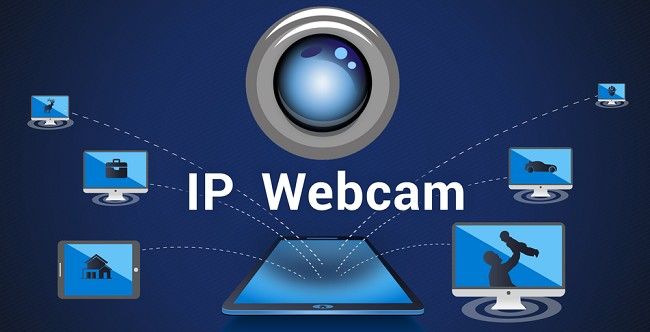
IP Webcam Pro - Download Best Monitoring App
IP Webcam Pro is an innovative application that turns your smartphone into a powerful network camera, providing you with multiple ways to view live video streams. Whether you're setting it up for personal security, monitoring pets or babies, or simply for live streaming purposes, IP Webcam Pro offers a wide range of features that make it one of the most popular apps in its category.
In this comprehensive guide, we will walk you through the steps to download, set up, and optimize IP Webcam Pro on your Android device. We'll also highlight key features of the app and how you can use it for various purposes like home surveillance, remote monitoring, and video streaming. So, whether you're a first-time user or an experienced tech enthusiast, you’ll find everything you need right here.
What is IP Webcam Pro?
IP Webcam Pro is an advanced version of the IP Webcam app, transforming your smartphone or tablet into a fully functional network camera. With this app, you can view live video streams from your phone’s camera, send them to your PC, or even stream them to the cloud. The app supports video streaming over Wi-Fi, motion detection, audio streaming, and multiple video formats such as WebM, MOV, MKV, and MPEG4.
In addition, IP Webcam Pro offers more extensive features than the free version, including:
Cloud push notifications: Receive alerts when motion or sound is detected.
Customizable video overlays: Overlay time, date, battery level, and sensor data.
Multiple web renderers: Choose between Flash, JavaScript, or the built-in renderer.
Advanced video recording: Record video in several formats and upload it to Dropbox, FTP, or email.
Audio streaming: Stream audio in WAV, Opus, and AAC formats (AAC requires Android 4.1 or higher).
Two-way audio: Available with tinyCam Monitor or other compatible apps.
Motion and sound detection: Get notified about movements or sounds in your camera’s view.
Support for cloud services: Easily upload footage to cloud storage services like Ivideon.
Key Features of IP Webcam Pro
Before you proceed with the download and installation, it's worth noting the unique and advanced features that make IP Webcam Pro so effective for a variety of uses:
1. Remote Viewing and Streaming
IP Webcam Pro supports live video streaming in real time. You can view the live stream via VLC media player, any modern web browser, or compatible third-party MJPG software. This makes it possible to access your camera feed from anywhere within the same Wi-Fi network.
If you want to use the camera outside of your home Wi-Fi network, the app offers integration with Ivideon, a cloud broadcasting platform that provides instant global access to your video feed. Whether you’re traveling or at work, you can always stay connected to your home or workplace.
2. Video and Audio Recording
IP Webcam Pro allows you to record video streams in several popular formats, including WebM, MOV, MKV, and MPEG4. This is especially useful if you want to save specific footage for future reference. The app also supports audio streaming, allowing you to listen to the environment through the microphone of your Android device.
3. Motion Detection
The motion detection feature in IP Webcam Pro is highly customizable and can be configured to trigger certain actions when movement is detected. For example, you can set up the app to send a notification when movement is detected, or even have the app start recording automatically.
4. Two-Way Audio Support
In addition to video streaming, IP Webcam Pro offers two-way audio support, which is compatible with tinyCam Monitor on another Android device. This makes it perfect for baby monitoring, security purposes, or any other use case where communication is needed.
5. Sensor Data
IP Webcam Pro can collect sensor data (e.g., temperature, humidity, motion) and display it in the form of online graphs. This feature is highly useful for environments that require constant monitoring, such as nurseries or pet rooms.
6. Customizable UI
The user interface of the app can be customized, allowing you to tailor the display to your specific needs. While the free version has limited customization options, the Pro version provides a more flexible setup that suits advanced users.
7. Night Vision and Infrared Support
The app supports night vision and infrared (IR) functionality, which is ideal for low-light environments or when you need to monitor in dark conditions.
How to Download & Set Up IP Webcam Pro?
Step 1: Download IP Webcam Pro from Google Play Store
To get started, you need to download and install the IP Webcam Pro app on your Android device. Follow these steps:
Open the Google Play Store on your Android device.
In the search bar, type IP Webcam Pro and press enter.
Look for the app and click on it.
Tap Install to begin the download process. Once the download is complete, the app will automatically install on your device.
Step 2: Grant Necessary Permissions
Once the app is installed, launch the IP Webcam Pro app. The first time you run the app, it will request permissions to access your camera, microphone, and storage. You must grant these permissions for the app to function correctly.
Tap Allow for each permission prompt.
Once permissions are granted, the app will show a preview of your camera feed.
Step 3: Configure Camera Settings
IP Webcam Pro allows you to configure a variety of camera settings to optimize your video feed:
Resolution and Frame Rate: Select the desired resolution (from 240p to 1080p) and frame rate. Lowering the resolution and frame rate can help reduce network usage.
Video Format: Choose the video format (WebM, MOV, MKV, or MPEG4). Depending on your needs, you can select the format that works best for storage or streaming.
Audio Settings: Enable or disable audio streaming and select the audio format (WAV, Opus, or AAC).
Video Overlay: Customize the date, time, and battery level overlays on the video feed.
Motion Detection: Enable motion detection and configure its sensitivity. You can also set up alerts to notify you when movement is detected.
Step 4: Set Up Streaming
IP Webcam Pro allows you to stream your camera feed to different devices and platforms:
Local Streaming: To view your stream within your local Wi-Fi network, open a web browser on any device connected to the same network and enter the IP address and port number displayed in the app. Alternatively, you can use VLC media player for streaming.
Cloud Streaming: To access your feed globally, set up the Ivideon cloud service by following the instructions provided in the app. This service allows for live streaming over the internet.
Step 5: Use Advanced Features
IP Webcam Pro supports several advanced features that enhance its usefulness for security and surveillance:
Motion & Sound Detection Alerts: Set up the app to send push notifications to your phone when motion or sound is detected.
Video Upload: Configure the app to automatically upload recorded videos to cloud storage services like Dropbox, FTP, or SFTP.
Recording: Tap on the “Record” button to start recording video manually or set up automatic recording based on motion detection.
Step 6: View Your Stream Remotely
Once the setup is complete, you can view your live video feed remotely by visiting the IP address provided by the app (in the format: http://
How to Use IP Webcam Pro for Specific Purposes?
1. Home Security and Surveillance
Set up IP Webcam Pro in your home to monitor entryways, living rooms, or other critical areas. With motion detection, you can ensure that any suspicious activity is recorded or immediately flagged by notifications. Combine the video feed with cloud services like Ivideon for added security and remote access.
2. Baby or Pet Monitoring
Use IP Webcam Pro as a baby monitor by enabling night vision and audio streaming. The two-way audio support allows you to listen to your baby or pet, and communicate with them remotely through another Android device running tinyCam Monitor.
3. Video Streaming for Live Events
If you're organizing a live event, such as a webinar or conference, you can use IP Webcam Pro to stream the event directly from your phone to platforms like YouTube or Facebook. Its customizable settings make it perfect for capturing high-quality footage.
4. Security Camera System for Business
For small businesses, IP Webcam Pro can be used to create an affordable security camera system. With support for motion detection, cloud recording, and real-time alerts, the app is an excellent choice for monitoring sensitive areas.
Frequently Asked Questions (FAQs)
1. What is IP Webcam Pro?
IP Webcam Pro is an app that turns your Android device into a network camera. It allows you to stream video and audio from your phone to other devices, and offers features like motion detection, video recording, and cloud storage.
2. Is IP Webcam Pro free?
No, IP Webcam Pro is a paid app. However, there is a free version called IP Webcam that offers basic features. The Pro version includes more advanced options like cloud notifications, higher-quality streaming, and customizable settings.
3. How do I download IP Webcam Pro?
You can download IP Webcam Pro from the Google Play Store. Simply search for "IP Webcam Pro" and tap "Install" to download and install the app.
4. How do I set up IP Webcam Pro?
After downloading the app:
Open the app and grant the required permissions (camera, microphone, storage).
Configure settings like video resolution, audio format, and motion detection.
Choose the streaming method (local Wi-Fi or cloud service like Ivideon).
Start the camera and begin streaming or recording.
5. Can I use IP Webcam Pro without an internet connection?
Yes! You can use IP Webcam Pro within your local Wi-Fi network without internet access. However, if you want to access the camera feed remotely, you'll need an internet connection and a service like Ivideon.
6. How do I view the camera feed?
You can view the live stream by:
Opening the provided URL in a web browser (on any device connected to the same Wi-Fi).
Using VLC Media Player by entering the stream URL.
Using third-party MJPG software for more advanced options.
7. Can I record video with IP Webcam Pro?
Yes, you can record video in multiple formats (WebM, MOV, MKV, MPEG4). You can also configure automatic recording triggered by motion detection.
8. Does IP Webcam Pro support audio streaming?
Yes, IP Webcam Pro supports audio streaming in formats like WAV, Opus, and AAC (requires Android 4.1 or higher).
9. What is motion detection in IP Webcam Pro?
Motion detection allows the app to automatically detect movement within the camera’s view. You can set up the app to send notifications or start recording when movement is detected.
10. How do I get notifications for motion or sound?
You can enable push notifications for motion and sound detection within the app. When the app detects activity, it will send an alert to your phone.
11. Can I access the camera feed remotely?
Yes, with the Ivideon cloud service integration, you can access your camera feed remotely from anywhere, even outside of your home Wi-Fi network.
12. Can I customize the camera’s user interface?
Yes, the Pro version allows you to customize the user interface. You can adjust overlays for date, time, and battery levels, as well as choose the web renderer (Flash, JavaScript, or built-in).
13. Does IP Webcam Pro support two-way audio?
Yes, IP Webcam Pro supports two-way audio through apps like tinyCam Monitor. This feature is useful for baby monitoring, security, or remote communication.
14. Can I upload video recordings to cloud storage?
Yes, you can upload recordings to cloud services like Dropbox, FTP, or SFTP using the Filoader plugin.
15. How do I access the video feed on my PC?
To access the feed on your PC, open a web browser and enter the IP address and port number displayed in the app, or use VLC Media Player to stream the video.
16. Does IP Webcam Pro support night vision?
Yes, the app supports night vision for low-light environments. It works by enabling infrared features on your phone’s camera, if supported.
17. Can I use IP Webcam Pro for security cameras?
Yes, IP Webcam Pro is an excellent tool for creating a DIY security camera system. It offers motion detection, cloud recording, and real-time notifications to help you monitor your home or business.
18. What are the system requirements for IP Webcam Pro?
IP Webcam Pro works on Android devices running Android 4.1 (Jelly Bean) or higher. The app supports various cameras, including front and rear-facing cameras.
19. Can I use IP Webcam Pro for baby monitoring?
Yes, IP Webcam Pro is commonly used as a baby monitor. It features video and audio streaming, night vision, motion detection, and push notifications for real-time monitoring.
20. Is IP Webcam Pro secure?
IP Webcam Pro uses standard security protocols for local and cloud streaming. However, it's recommended to use strong passwords and secure cloud services (like Ivideon) for enhanced security when accessing feeds remotely.
21. Can I use IP Webcam Pro on multiple devices?
Yes, you can install IP Webcam Pro on multiple Android devices. Each device can stream video separately or be used as a monitoring station to view multiple camera feeds.
22. Can I use IP Webcam Pro with other surveillance software?
Yes, IP Webcam Pro supports third-party MJPG software, which can be integrated into surveillance systems, security monitors, or video surveillance software.
23. Can IP Webcam Pro be used as a webcam for video calls?
Yes, you can use IP Webcam Pro to stream video for video calls, though it may not have the same functionality as a traditional webcam in apps like Zoom or Skype.
Conclusion
IP Webcam Pro is a versatile and powerful app that can turn your Android device into a fully functional network camera. Whether you’re looking to monitor your home, pets, or work environment, the app offers numerous features that make it suitable for a variety of use cases. With remote viewing, motion detection, cloud recording, and customizable settings, it’s easy to see why IP Webcam Pro is one of the best choices for mobile surveillance and video streaming.
By following this guide, you can download, install, and set up the app in no time. Afterward, you can take full advantage of all the advanced features that IP Webcam Pro has to offer, providing you with complete control over your video streams, recordings, and alerts.